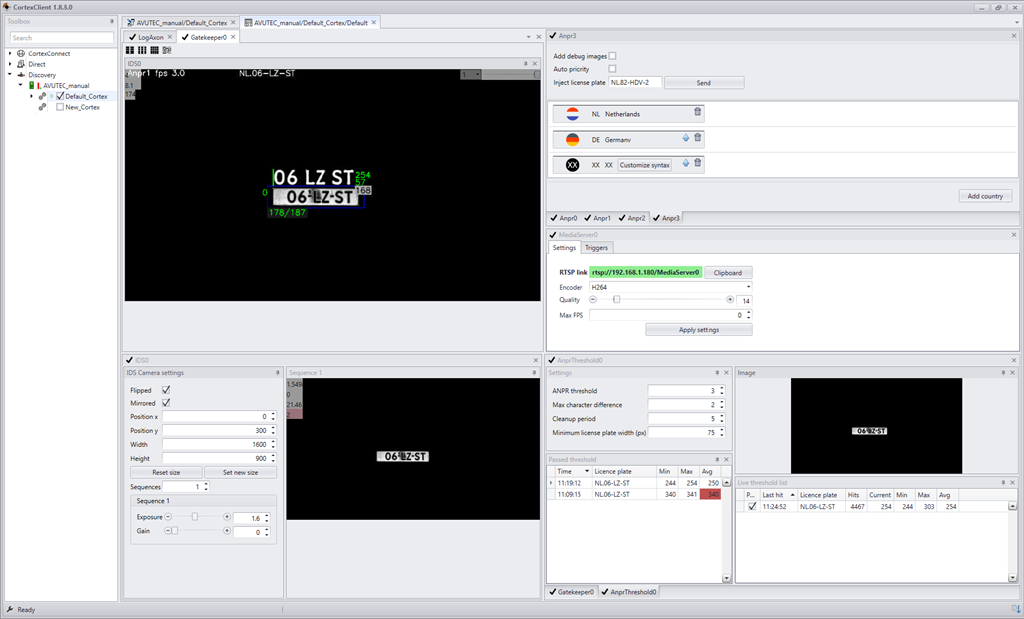
CortexView displays the settings- and viewpanels of the Axons of a Cortex. Each Axon has its own settingspanel, that contains the settings of that particular Axon.
Most Axons have a viewpanel. The viewpanel displays the image at that particular stage in the Cortex. In CortexClient all panels open as a tab and can be dragged and dropped on the canvas to create a personalized view.
CortexView can only be opened and the settings can only be changed, when the Cortex is running.
After configuration and changing the settings save the Cortex.
1. Example CortexView |
|
|
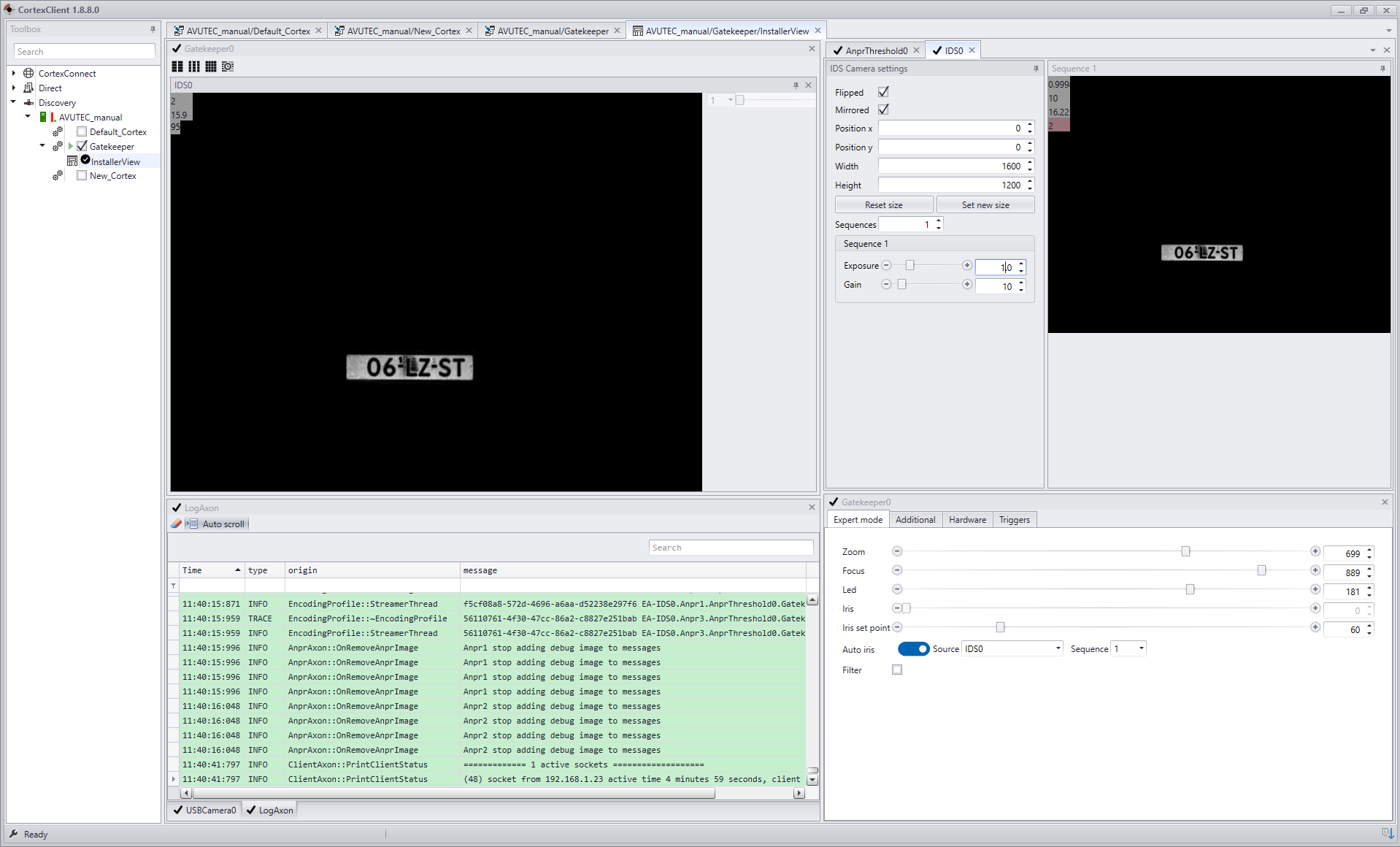
All CortexDevices come with a pre-installed default Cortex. The CortexView for this Cortex is pre-configured and serves as a starting point for a personalized application. The pre-configured CortexView is called "InstallerView".
After login to a CortexDevice, run the included pre-built Cortex and click twice on the "Installerview". The arrow next to the Cortex can be used to see all CortexViews available. |
2. Customize CortexView |
|
|
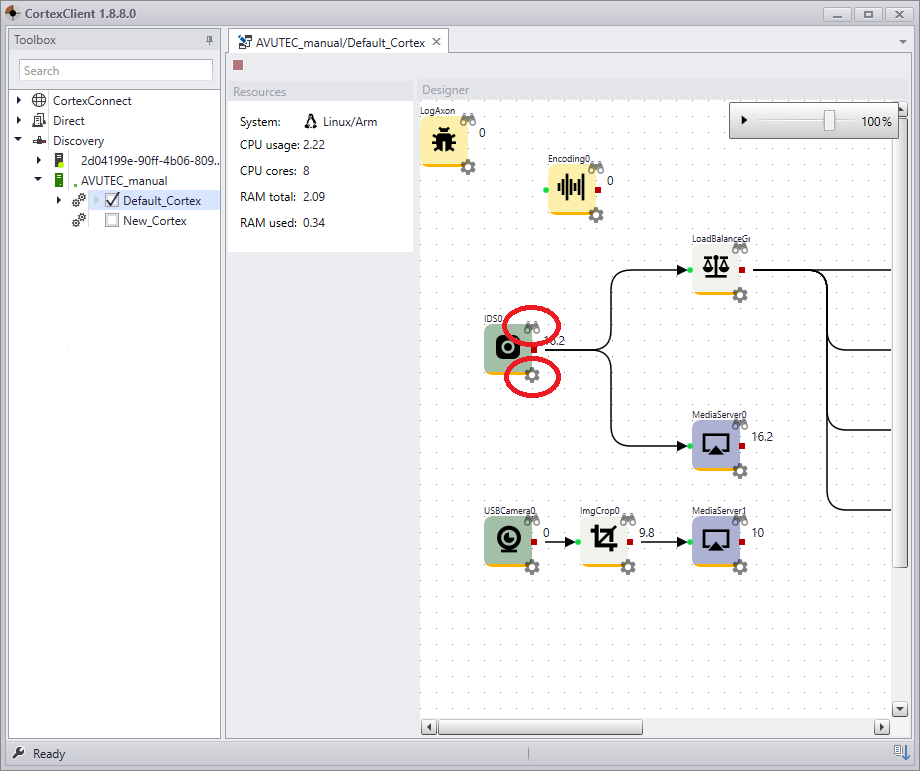
In CortexDesigner each Axon-icon has two symbols. On the left top corner a symbol of binoculars, at the left bottom corner settings sign. Clicking the binoculars will open the view panel of the specific axon. Clicking the the settings symbol will open the settings of that particular axon.
By clicking the symbols, the view- or settingspanel will open in the CortexView. All panels of one Cortex will open in the active CortexView. CortexView can be customly designed by dragging the panels to the desired position.
For one Cortex multiple CortexViews can be created. Right click the Cortex in the CortexNavigator en select 'new view'. Set the name and save. Right click the newly made view and choose 'set active' from the pop up menu. From CortexDesigner panels will now be assigned to the active CortexView.
All Axons have their own settings. For detailed information about the settings per Axon follow this link. |
3. A custom CortexView |
|
|
After a Cortex is built from scratch (see design a cortex in CortexDesigner), run the designed Cortex by right clicking the Cortex and choosing 'run cortex' or click the play-icon in CortexDesigner in the top left corner.
Then double click the running Cortex to open the default CortexView or open CortexView by clicking on the arrow icon next to its name. The default view will be visible called Default. In a newly created Cortex only the LogAxon is seen. |