CortexDesigner is the main tool to design a new or adapt an existing Cortex.
A running Cortex cannot be modified. Stop a running Cortex first before further configuration.
After configuration save the new Cortex.
Step 1: Create a new cortex |
|
|
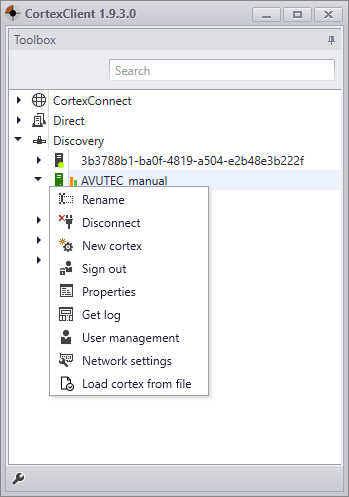
To create a new Cortex, right click on the name\GUID of the CortexDevice and select 'new cortex'. Name your Cortex in the pop up box and click create. |
|

Step 2: Start Cortex Designer |
|
|
The default Cortex All CortexDevices come with a pre-installed default Cortex. CortexDesigner is pre-configured and serves as a starting point for a personalized application. The pre-configured CortexDesigner is opened by double clicking a non-running Cortex. When the Cortex is running right click the Cortex and choose "design cortex". In order to change a Cortex, the Cortex has to be stopped first.
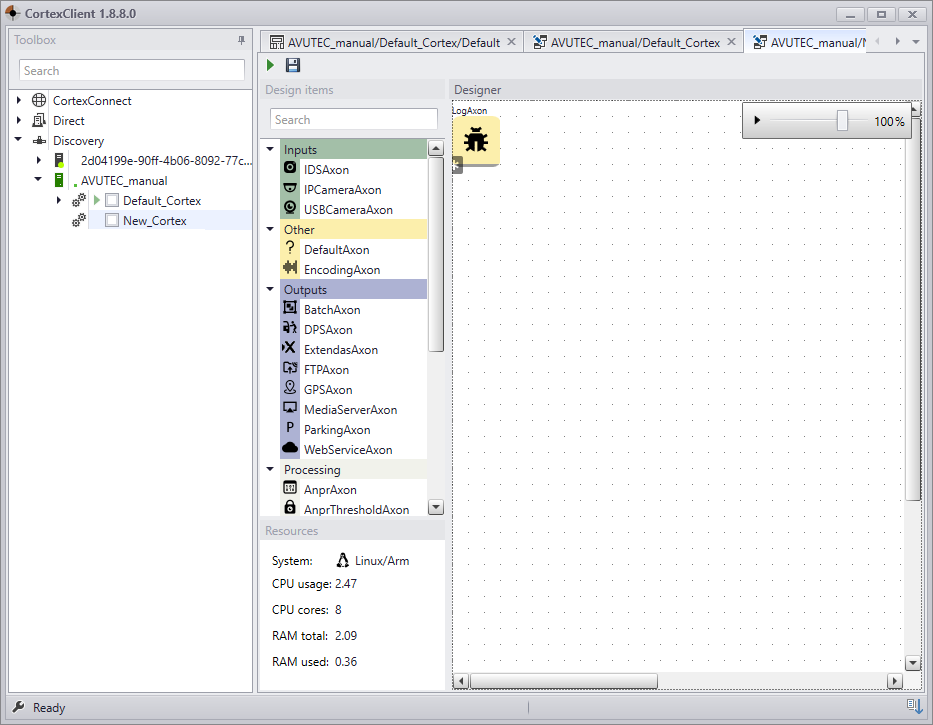
A new Cortex To start designing a new Cortex, right click on its name, in this case New_Cortex, and click ' design cortex'. Cortex designer will open an empty canvas. Only the log axon will be present. |
Step 3: Start designing |
|
Axons can be easily placed on the canvas by dragging and dropping them from the design item list (the middle section of CortexDesigner) to the canvas. A good way of designing is to start with one or more input axons and work from there. |
|
|
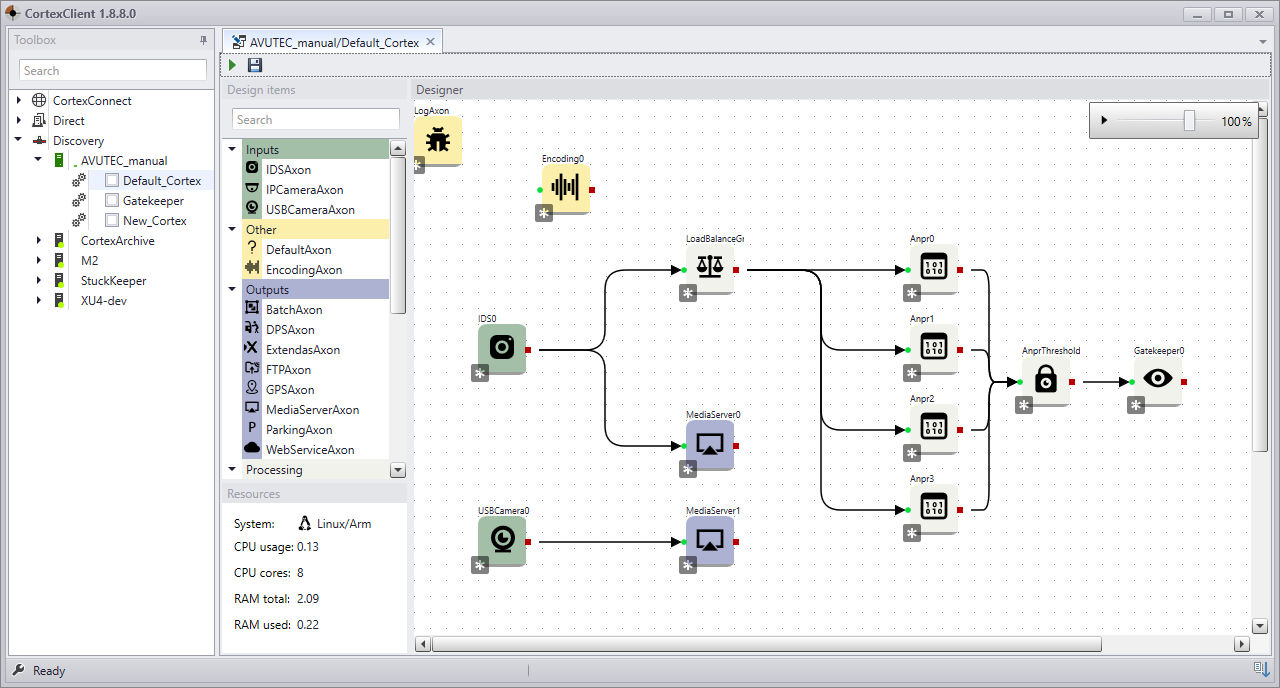
Connecting Axons To connect two Axons, simply drag from the red to the green square holding left mouse button and the connection will be made, visualized by an arrow. Connecting the Axons will mean the images from the left Axon are passed to the right Axon , creating a pipeline or flow for the images.
Deleting Axons Deleting an Axon is done by selecting the Axon and pushing the delete button on the keyboard. Deleting an arrow is done in the same way. More then one Axon can be connected with another Axon, see the LoadBalanceAxon in the example. |
|
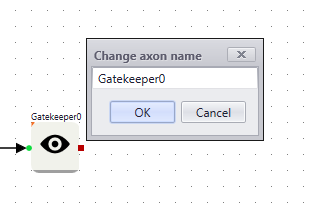
Renaming Axons Renaming an Axon is also possible, double click the name of the Axon and a dialog box will pop up. |
Step 4: Save the Cortex |
|
|
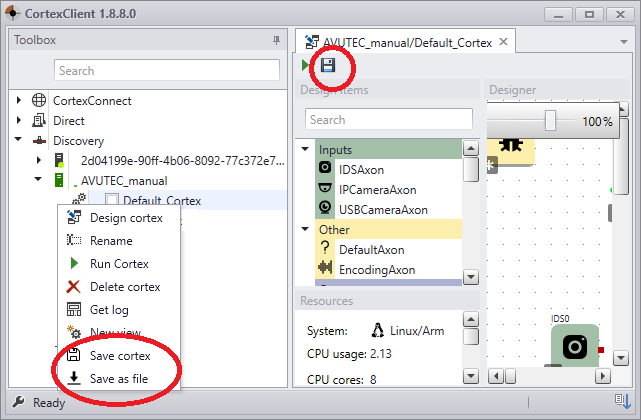
To save the work, click on the save icon next to the run button. The run and save icon can be found in the left top corner of the designer canvas.Right click the Cortex. Choose 'save Cortex' in order to save the newly designed or adjusted Cortex.Save Cortex to file To save a Cortex to file right click the Cortex and choose "Save as file". The Cortex is saved as a file and can be used for other CortexDevices.Load Cortex from file To load a Cortex from file right click the hypervisor (in this example 'AVUTEC_manual') and choose "Load cortex from file". |
Step 5: Run the cortex and enable autostart |
|
|
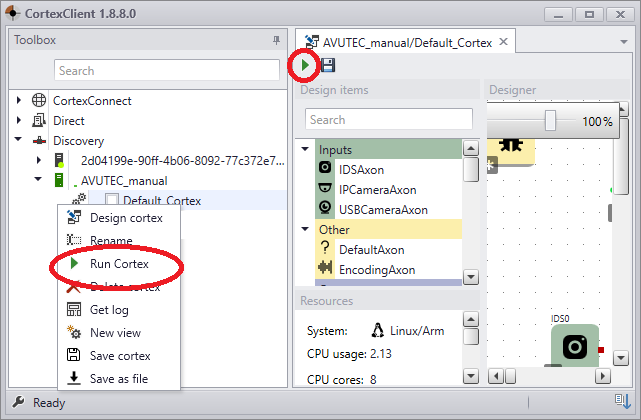
Run the Cortex Click the "play" icon to run the Cortex or right click the Cortex in CortexNavigator and choose 'run cortex'. Now the flow of the image frames is made visible by the fps printed above the arrows.
Enable autostart Enable autostart of the Cortex by checking the checkbox next to the Cortex. Autostart will automatically restart the Cortex after power loss. After relocating a Cortexdevice, the selected Cortex will run automatically. When power is shut down during closing hours, a CortexDevice will start the Cortex as soon a power is turned on. |
Step 6: Configure the cortex settings |
|
|
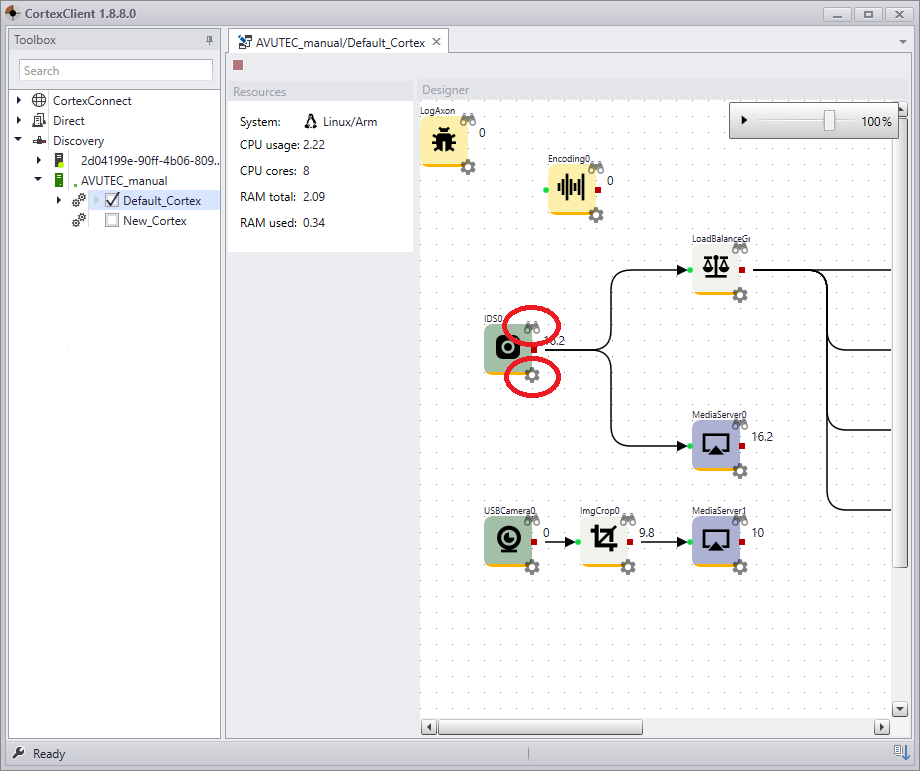
Each axon-icon has two symbols: •On the right top corner a symbol of binoculars: •At the left bottom corner settings sign.
By clicking the symbols, the view- or settingspanel will open in another tab, the CortexView. All panels of one Cortex will open in the same CortexView. CortexView can be tailored by dragging the panels to the desired position.
For one Cortex more then one CortexView can be created. Right click the cortex en select new view. Set the name and save. Right click the newly made view and choose 'set active' from the pop up menu.
From CortexDesigner panels will now be assigned to the active Cortex view.
All Axons have their own settings. For detailed information follow this link. |