The start screen |
|
|---|---|
|
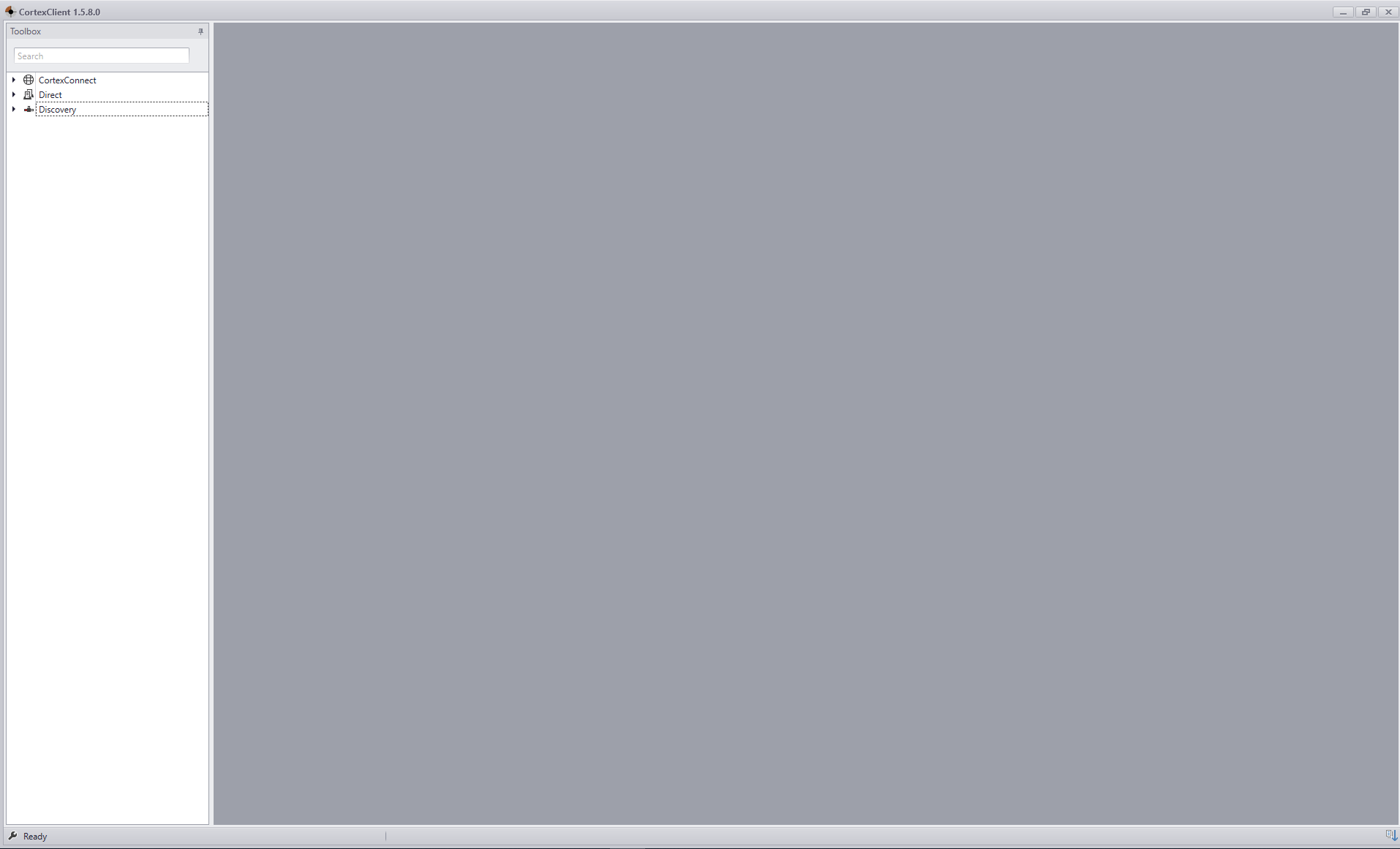
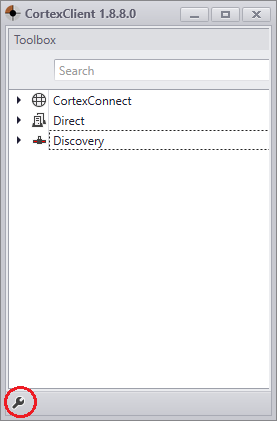
CortexNavigator is the CortexClient explorer. The navigator is the left panel of the opening page of CortexClient. All CortexDevices (hypervisors) and their Cortexes can be found here, grouped by the way of connecting to it. |
1. The CortexNavigator |
|
|
All CortexDevices and their Cortexes can be found here, grouped by the way of connecting to it:
Search The search box fastens finding a CortexDevice.
Tool icon (red circle) In the bottom left corner next to the tool icon messages are shown to give feed back on all the operations that have been done in the CortexNavigator. Left clicking next to the icon opens a popup box with the last messages. |
2.CortexConnect |
|
|
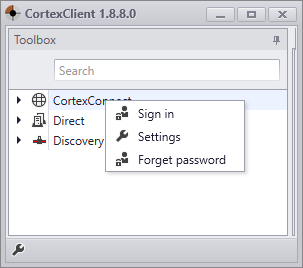
Connecting with CortexConnect
•Sign in: fill in the username and password obtained by taking out a subscription. •Settings: To give in a port for the local router to get a reverse connection •Forget password: sign out
Read more about CortexConnect |
3. Direct |
|
|
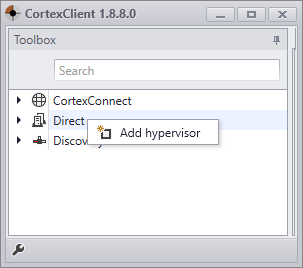
Using Direct connecting
Right click 'Direct" •Add hypervisor: opens the settings to add a new CortexDevice.
Read more about direct connection. |
4. Discovery |
|
|
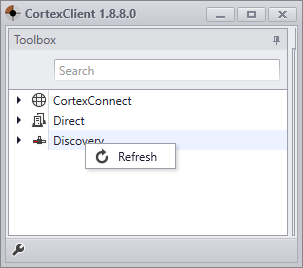
Discovery
•Refresh: Scans the local network again for present CortexDevices.
Read more about discovery |
5. Basic operations before signing in to a CortexDevice |
|
|
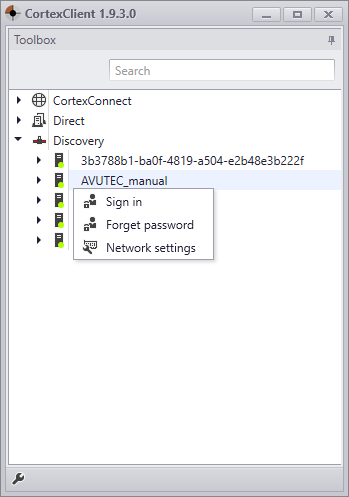
Right click CortexDevice or hypervisor (here called 'AVUTEC_manual')
•Sign in: Sign in to the CortexDevice/hypervisor with username and password. •Forget password: Forget password after enabling. Remember me during signing in. •Network settings: Open the network setting. |
6. Basic operations after signing in to a CortexDevice |
|
|
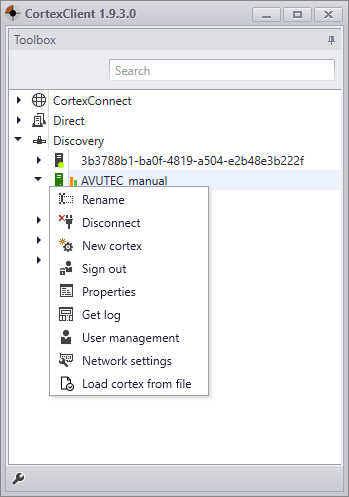
Right click CortexDevice or hypervisor (here called 'AVUTEC_manual')
•Rename: Rename CortexDevice/hypervisor •Disconnect: Disconnect CortexDevice/hypervisor •New cortex: Create a new Cortex (application) •Sign out: Sign out of the CortexDevice/hypervisor •Properties: See the properties panel •Get log: Get the CortexDevice log and error log •User management: Open the panel to see all users •Network settings: open the network settings of the CortexDevice •Load cortex from file: Load a Cortex from file to the hypervisor
|
|
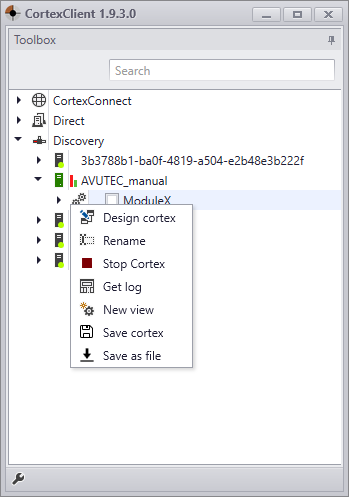
Right click the Cortex (here called 'Default_Cortex')
•Design cortex: Go to CortexDesigner •Rename: Rename the Cortex •Stop cortex: Stop de Cortex •Get log: Get the Cortex log and error log •New view: Create a new CortexView •Save Cortex: Save the Cortex •Save as file: Save the file as a Cortexfile
Read more about CortexDesigner |
|
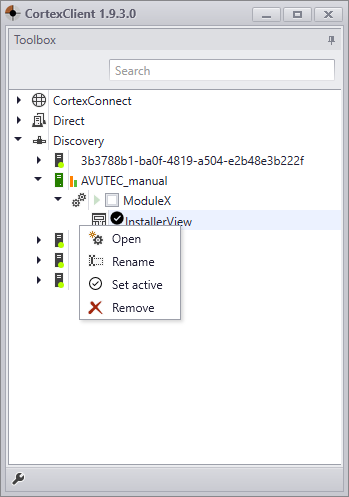
Right click the CortexView (here called 'Default')
•Open: Open the CortexView •Rename: Rename the CortexView •Set active: set a particular CortexView as the active one •Remove: remove the CortexView from the CortexNavigator
Readmore about CortexView |