CortexConnect is an easy way of connecting if you are outside the local network, you don't know the IP-address of the device you want to connect to or if firewalls are in place.
CortexConnect uses a relay server to establish the connection. Both CortexClient and the CortexDevice will connect to the server.
CortexConnect is an extra service offered by Avutec to access CortexDevices remotely. It is available as a subscription. A subscription to CortexConnect will provide for a login name and a password.
For more information, please contact the sales department.
There are 2 ways to connect to the device through CortexConnect.
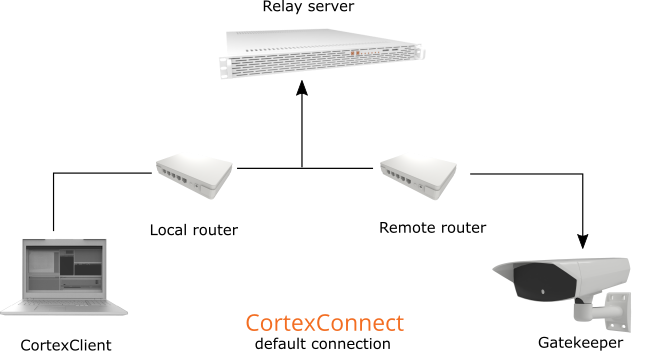
1. Default connection: |
|
|
All data is transferred via the relay server that helps bypass firewalls and routers, so that no additional network configuration is necessary, this is the easiest way of connecting when a direct or local connection is not possible. |
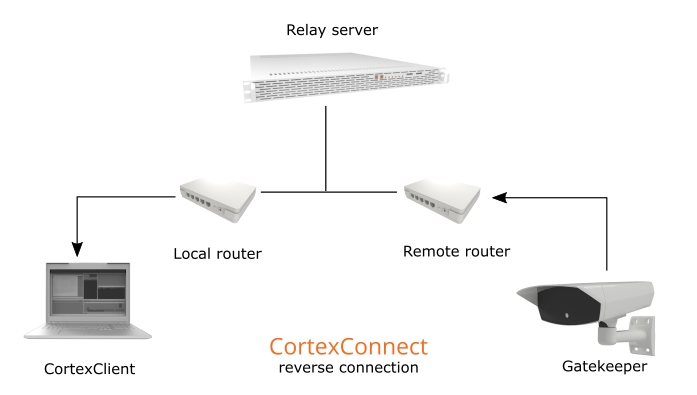
2. Reverse connection: |
|
|
A callback request is made from CortexClient, sending the number of the open port via the relay server to the CortexDevice that can then connect to CortexClient. This makes for faster data transfer but requires the local router to be configured to open a port, see the manual of the local router for instructions on port forwarding. |
3. Login to CortexConnect |
|
|
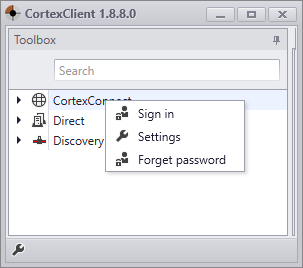
To use CortexConnect for the first time click the arrow left of the globe symbol or right click 'CortexConnect' and fill in user name and password, which come with the subscription. When logged in all activated devices will be visible in your account. The devices with the green dot are the ones currently online. |
4. Change to reverse connection |
|
|
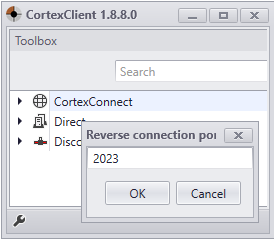
To change from default connection to reverse connection right click CortexConnect and go to settings. Fill in the number of the port that has been opened in the local router. |
5. Configuring ip adress |
See how to configure the IP adress here. |