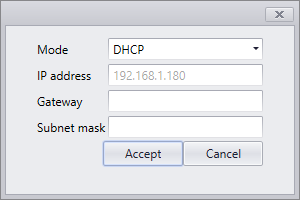
1. Discovery |
|
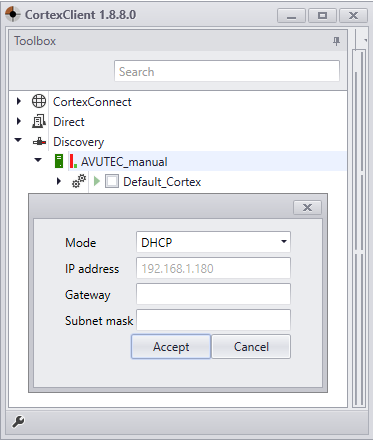
•Refresh discovery by right clicking on discovery and choose refresh. •Right click on the name of the desired CortexDevice, go to Network settings to configure the IP. •By default, the IP address is given using DHCP (Dynamic Host Configuration Protocol) but if required a static IP address can be provided by selecting the down arrow next to DHCP and selecting ‘static IP’. •Fill in the desired IP and Gateway. •The subnet mask will be on automatic be default, the option to change this manually is there if further configuration is required, but this is an advanced setting and it is recommended to leave this ticked. |
2. CortexConnect and Direct |
|
|
Login to the CortexDevice which IP-address needs to be configured. Right click on the name of the desired CortexDevice, go to Network settings to configure the IP.
By default, the IP address is given using DHCP (Dynamic Host Configuration Protocol) but if required a static IP address can be provided by selecting the down arrow next to DHCP and selecting ‘static IP’. Fill in the desired IP and Gateway. The subnet mask will be on automatic be default, the option to change this manually is there if further configuration is required, but this is an advanced setting and it is recommended to leave this ticked. |