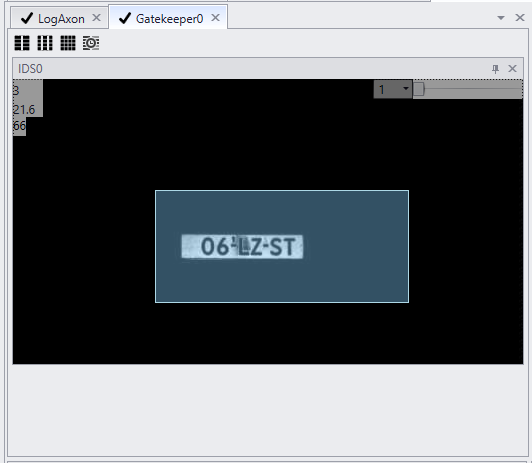
Most Axons have a view panel. Their functionality is the same for all.
The view panel displays images received by the axon the panel belongs to. The position of the Axon in the Cortex specifies the image displayed.
|
The viewpanel of an Axon can be accessed by clicking the binocular icon of the Axon in CortexDesigner. |
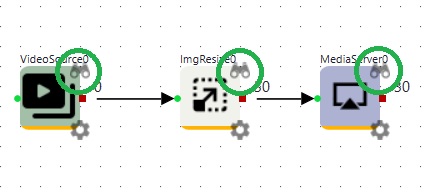
Viewpanels explained |
|
|
The slider In the right corner of the view a slider is seen. With this slider the image quality in CortexClient is set. The slider does not change the setting of the sensor itself. It only influences the view in CortexClient.
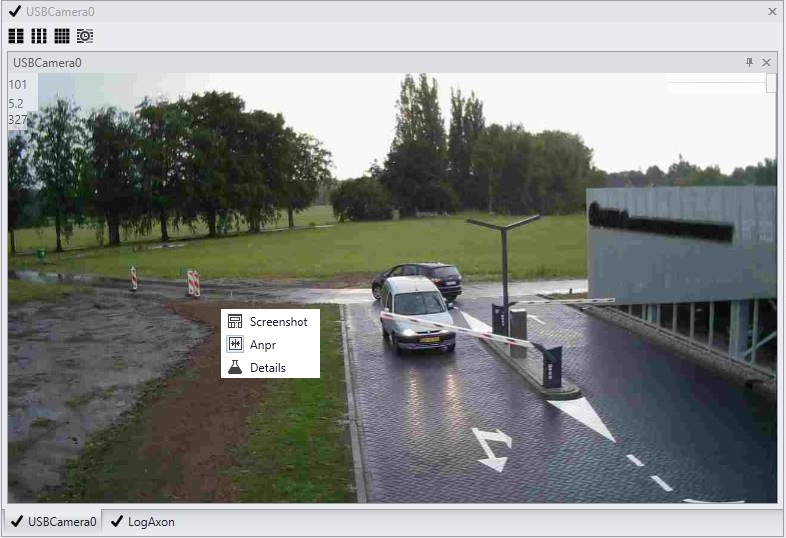
The popup menu A popup menu is shown by right clicking the image. 1.Clicking 'screenshot' will make a screenshot. The result is found in
2.To images of Axons positioned after ANPRAxon, an overlay with information about the recognition can be added.
3.Choosing 'details' in the popup menu toggles the information seen in the left top corner of the image.
Icons in the top left corner When more then one sensor or sequences are used the icons in the left corner can be used to choose the grid for displaying the streams. |
Automated zoom and focus |
|
|
Automated zoom and focus An extra feature to set focus and zoom is drawing a rectangle holding left mouse button dragging the mouse. The selected area (the blue rectangle shown in the screenshot) will be used to calculate focus and zoom.
Important: This feature is only available for the GatekeeperAxon in a CortexDevice with a motorized zoomlens (Gatekeepers). It will change the settings of the lens and therefor the display of the attached sensor.
|