The canvas of CortexView is built up with view- and settingspanels. The panels behave like tab pages and can be docked at several places in the view.
Docking the panels |
|
|
Adding a panel Adding panels to CortexView is done by clicking the goggle symbol of an Axon in CortexDesigner. It will open CortexView automatically.
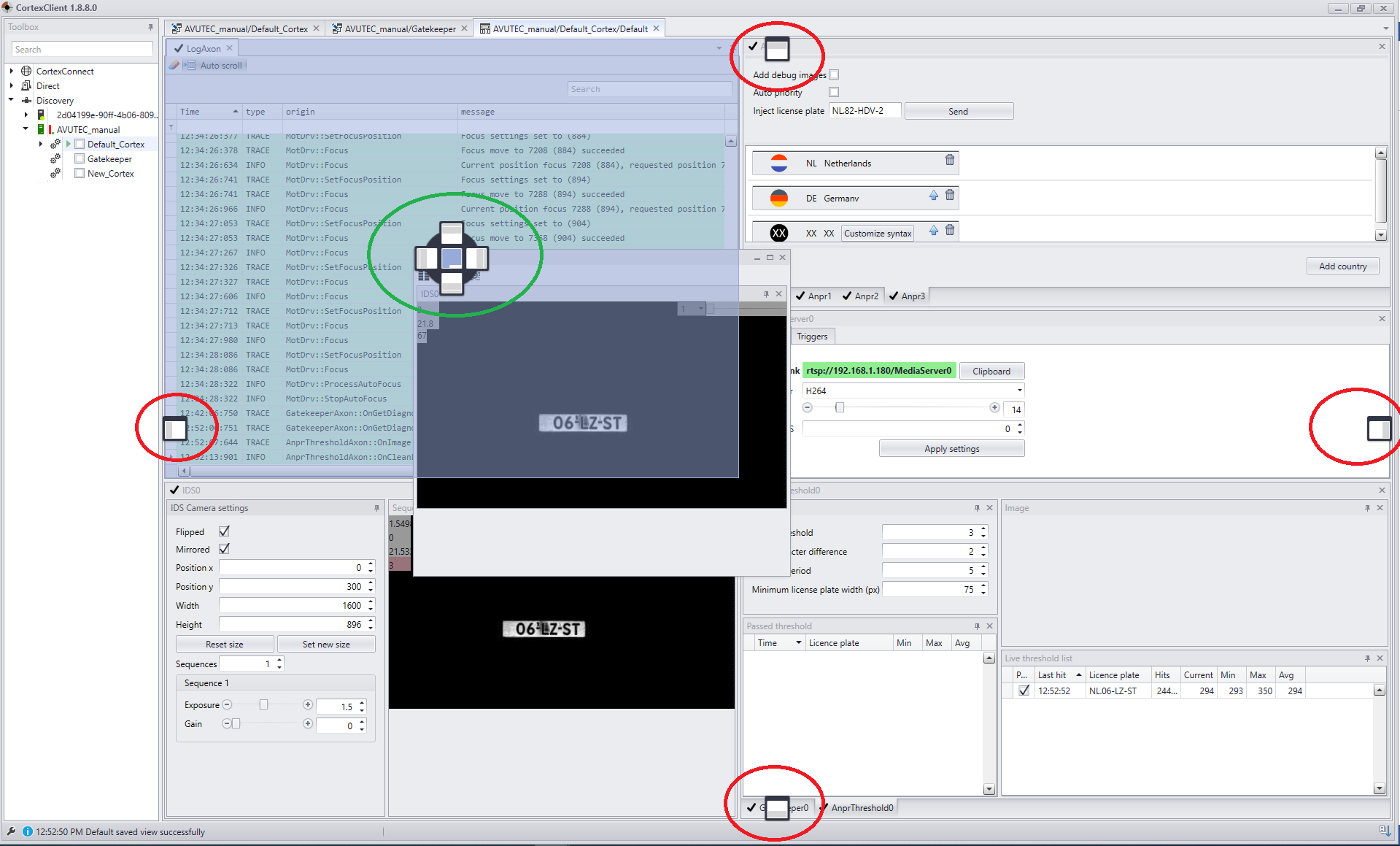
Placing the panel When CortexView has opened, left-click-hold the tab-label and drag the added view- or settingspanel to the desired place. While dragging, docking symbols (red and green encircled in the picture on the left) will appear.
•The red encircled symbols offer the choice to dock the panel on the top, sides or bottom of the canvas. The panel will cover the width or height of the view. •The green encircled symbol gives the option to be more specific where to place a panel. In this screenshot the panel will be placed in the left quarter of the canvas: Within this quarter the top, bottom or side position can be chosen. The middle of this symbol will fill up the complete quarter panel. The dragged panel will then share the place with another panel already there. Tabs on the top of the quarter can be used to switch between panels. •The green encircled symbol can also appear in the center of the canvas. The panel will then be placed filling the whole width, height or sides of the complete view.
•The blueish overlay shows the current selected docking position.
•Hovering over the docking symbols shows the options available.
|