Installing CortexClient |
After connecting the Gatekeeper properly, it can be remotely configured using CortexClient. If the PoE+ 802.3at switch does not provide for an open internet connection, make sure you are using CortexClient from within the network domain of the user, use a (pre-tested) VPN tunnel connection or CortexConnect, the AVUTEC remote conection service.
CortexClient can be downloaded: •Download link: avutec.com/support/ •Password: Avutec!
Install CortexClient using the default settings. Check mark launch CortexClient and after installation the application will automatically start showing the login screen. •username: administrator •password: cortex
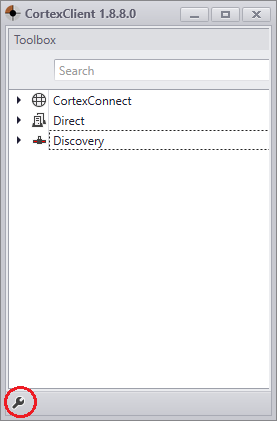
After login, the Client screen will be displayed, with on the left side the CortexNavigator containing the different methods of connecting that are possible. |
Left panel of CortexClient: CortexNavigator |
|
|
1.Discovery
2.Direct
3.CortexConnect |