Deprecated:
Used until model Gatekeeper-2
For Gatekeeper-X see VideoSourceAxon
For Gatekeeper-X2 and X3 see ULLAxon
The USBCameraAxon interfaces with the internal usb camera.
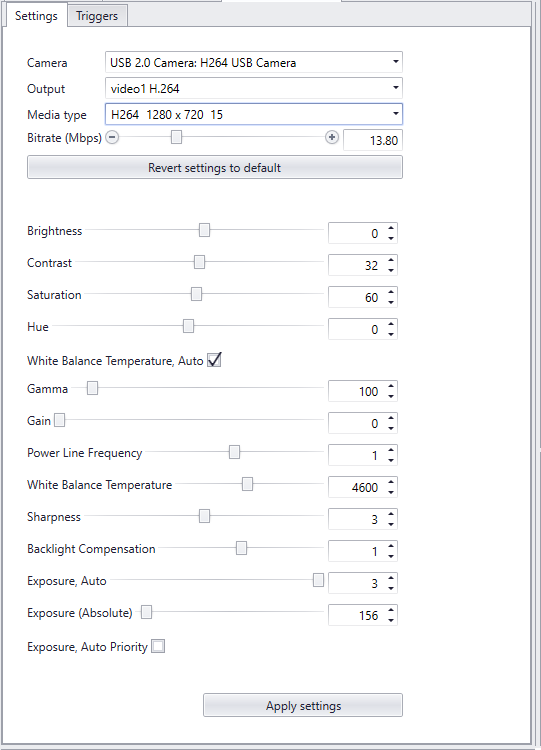
In CortexClient the live view of the USB camera is displayed in its viewpanel. In the corresponding settingspanel the settings of a USB camera can be changed. Changes can be viewed live.
To read more about viewpanels in general follow this link. The viewpanel of this Axon displays images directly from the on board color camera.
The settings panel |
|
|
The fields at the top of the panel display which/how many USBCameraAxons are part of the current Cortex and their possibilities. A Cortex can contain more then one USBCameraAxon.
1.Camera 2.Output 3.Media type 4.Bit rate 5.Revert settings to default
Recommended settings and Cortex configuration for recording: In CortexDesigner design the Cortex with two USBCameraAxons. •USBCameraAxon 1: •USBCameraAxons 2: |
Setting name |
Min value |
Max value |
Description |
Brightness |
-64 |
64 |
Brightness refers to the overall lightness or darkness of the image. |
Contrast |
0 |
64 |
Contrast is the difference in brightness between objects or regions. |
Saturation |
0 |
128 |
Intensity of the color. A saturated image has overly bright colors. |
Hue |
-40 |
40 |
The actual color. One end of the slider gives a greenish, the other end a blueish hue to the image. |
White balance temperature, Auto |
|
||
Gamma |
72 |
500 |
Gamma correction controls the overall brightness of an image. Devices like camera's and videorecorders do not capture luminance correctly. To correct the display of luminance gamma can be set. |
Gain |
0 |
100 |
Gain is a setting that controls the amplification of the signal from the camera sensor. It should be noted that this amplifies the whole signal, including any associated background noise. In general, gain should be used only after optimizing the exposure setting, and then only after exposure time is set to its maximum for a given frame rate. |
Power Line Frequency |
0 |
2 |
To reduce flickering in a video stream |
White balance temperature |
0 |
6500 |
Set the temperature of the image. From cool to warmer hue. |
Sharpness |
0 |
6 |
Setting the sharpness of the edges of objects in the image |
Backlight compensation |
0 |
2 |
Compensate for backlight by enhancing automatic exposure control on the camera |
Exposure, auto |
0 |
3 |
By default it will auto set the exposure Exposure time is the amount of time the shutter is open to capture an image, the higher the exposure time, the more blur or distortion can occur. If lighting conditions allow for it, keeping the exposure time lower has preference for the best focus. |
Exposure (absolute) |
0 |
5000 |
To manually set the exposure |
Exposure, Auto Priority |
Auto setting the exposure |