Default Axon in a Gatekeeper starting from model Gatekeeper-X3.
In models before Gatekeeper-X3, the IDSAxon is used.
The IDSPeakAxon is the Axon that controls the settings of the IR sensor used for license plate recognition.
Changes are set in the IDSPeakAxon settingspanel. In CortexClient the live view of the IR camera is displayed in its viewpanel.
To read more about viewpanels follow this link an their possibilities. The viewpanel of this Axon displays images directly from the IR sensitive camera.
1. Settings- and view panel of IDSPeakAxon for Gatekeeper-X3 |
|
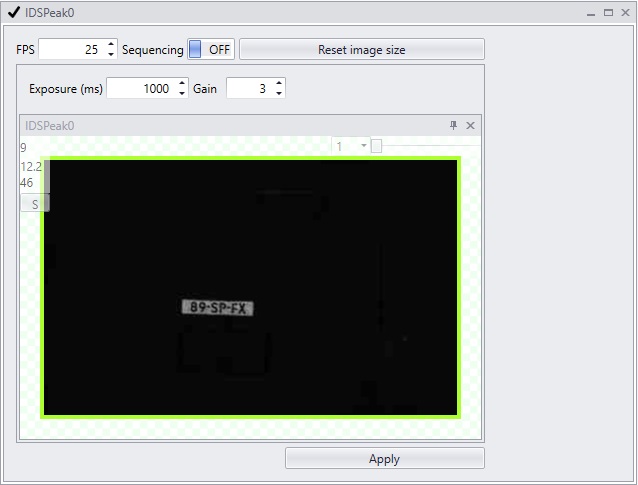 IDS axon settings- and viewpanel with 1 sequence |
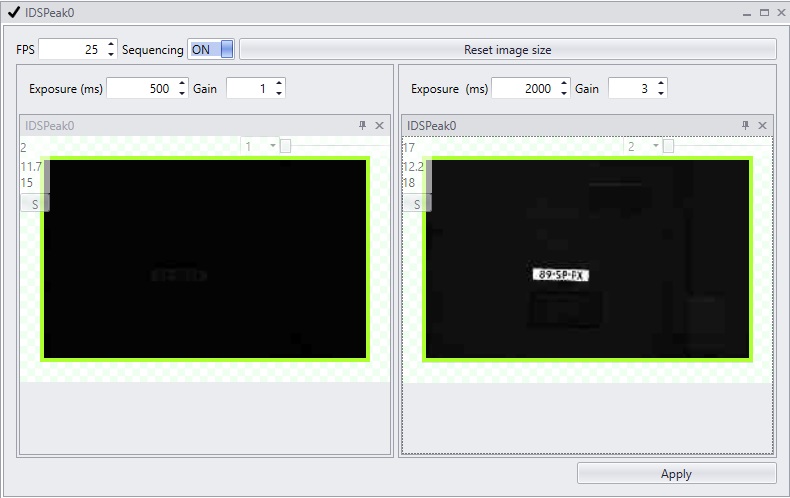 IDS axon settings- and viewpanel 2 sequences |
Setting |
Description |
FPS |
Current frames per second |
Reset image size |
To revert back to the original image |
Sequencing |
To enable or disable sequencing. The two sequences are configured to have their own exposure and gain settings, to optimise recognition for varying lighting circumstances. |
Exposure |
Exposure time is the amount of time the shutter is open to capture an image, the higher the exposure time, the more blur or distortion can occur. If lighting conditions allow for it, keeping the exposure time lower has preference for the best focus. |
Gain |
Gain is a setting that controls the amplification of the signal from the camera sensor. It should be noted that this amplifies the whole signal, including any associated background noise. In general, gain should be used only after optimizing the exposure setting, and then only after exposure time is set to its maximum for a given frame rate. |
2. Cropping the image of the IDSAxon |
|
|
The viewpanel of the IDSAxon diplays the live view of the IR sensor. The default resolution enables a large viewing area where more then one license plate can be recognized. Analyzing an image with this size costs a certain amount of processing power. When possible the image should be cropped by choosing an optimal Region of Interest ,ROI. This will speed up recognition.
Rubber banding can be used to select an area of interest. Hold left mouse button, draw the rectangle of the desired region of interest and let go.
The view of the Axon will immediately change. To reverse the crop click 'reset image size'. |
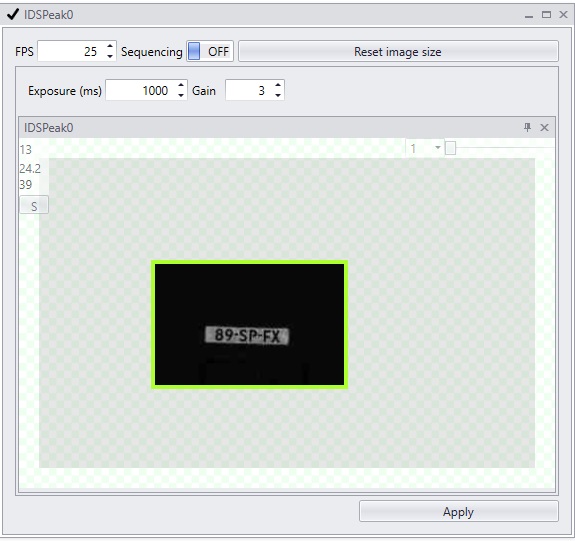
3. Selecting the Region of interest with the "Crop map" |
|
|
A special feature to get the best possible recognition area is the "crop map" function of the IDSPeakAxon. The coordinates of recognized license plates are stored and are used to determine the best crop area.
The "crop map" is an overlay, that can be activated by right clicking the view of the IDSPeakAxon and choose "Show crop map". The overlay will show the crop map as a cloud, that represents all past recognitions.
The cloud is the most dense (white) in the area most license plates are recognised. In the black parts of the image, no license plate is ever read. In the screen shot the crop can even less high. |
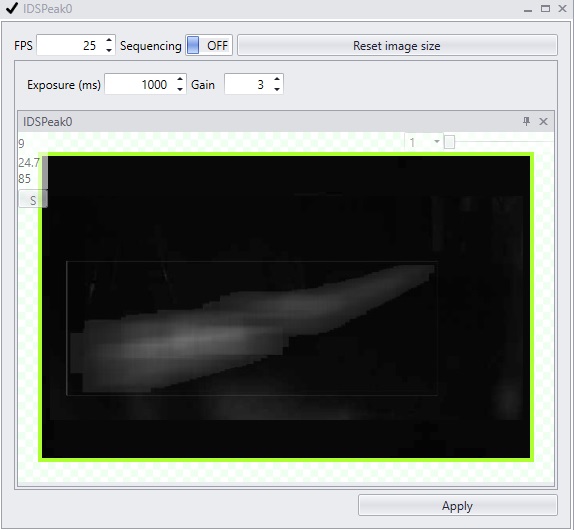
4. Sequences |
An important feature to improve recognition for all lighting/weather conditions is to set up two sequences, making the sensor provide two streams with two different settings. For each sequence exposure and gain can be set individually. The rest of the settings are equal for both sequences.
Advised is to always use two sequences when license plate recognition is deployed outdoors. When deployed indoors the use of 1 sequence is sufficient. Values for sequences differ per situation. The values in the table below are a good starting point.
|
Default values for sequencing |
|||||||||
|