Deprecated
Used in Module-x until march 2022
In the IDSAxon the settings for the IR sensor are configured.
The Module-X comes with a pre-defined set of configurations, that cover 95% of all projects.
By default "Auto exposure" is enabled. AVUTEC recommends to keep "Auto exposure" enabled, it will work best in the majority of projects.
Settings of the IDSAxon |
|
|
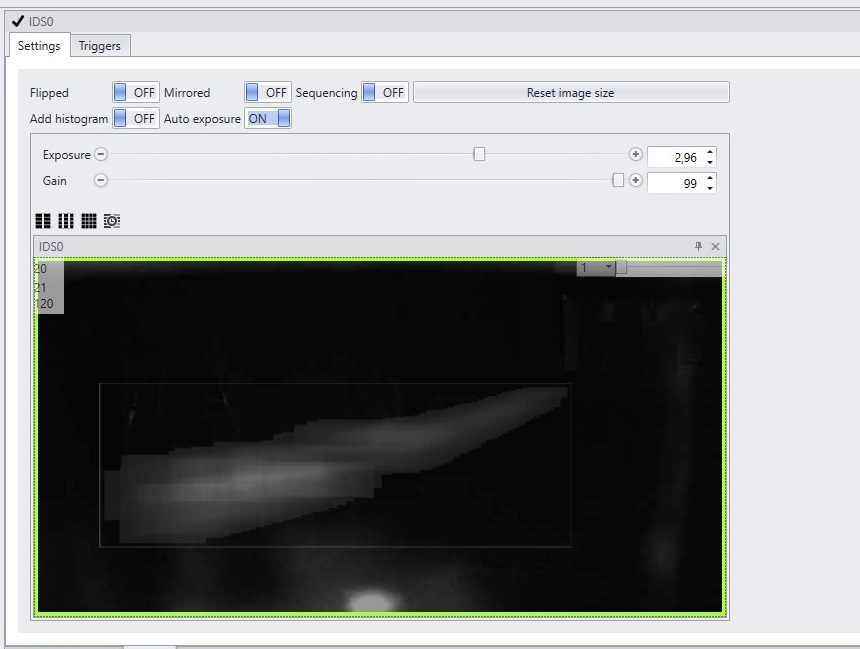
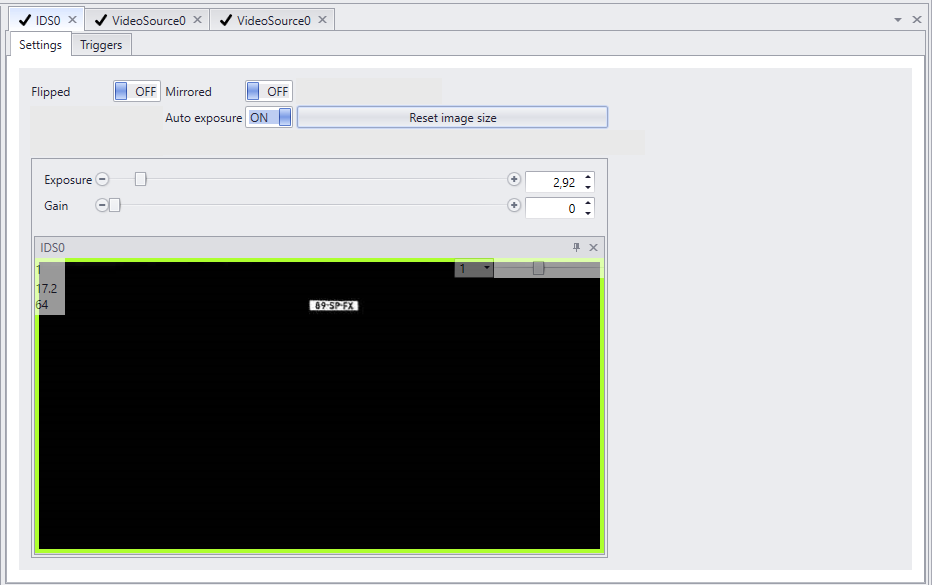
•Flipped: flip image vertically •Mirrored: flip image horizontally •Auto exposure: Enable auto exposure (default auto exposure is enabled). •Exposure: to manually set exposure (auto exposure is disabled). Only used in settings where lighting conditions are fixed and don't vary. •Gain: to manually set gain. only possible when auto exposure is disabled. |
Cropping the image of the IDSAxon |
|
|
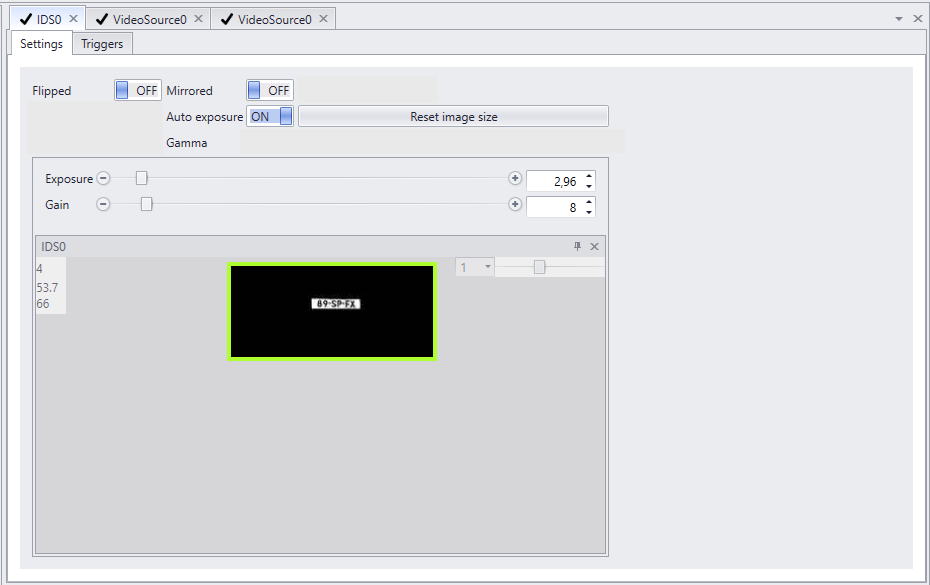
The viewpanel of the IDSAxon diplays the live view of the IR sensor. The default resolution enables a large viewing area where more then one license plate can be recognized. Analyzing an image with this size costs a certain amount of processing power. When possible the image should be cropped by choosing an optimal Region of Interest ,ROI. This will speed up recognition.
Rubber banding can be used to select an area of interest. Hold left mouse button, draw the rectangle of the desired region of interest and let go.
The view of the Axon will immediately change. To reverse the crop click 'reset image size'. |
Selecting the Region of interest with the "Crop map" |
|
|
A special feature to get the best possible recognition area is the "crop map" function of the IDSAxon. The coordinates of recognized license plates are stored and are used to determine the best crop area.
The "crop map" is an overlay, that can be activated by right clicking the view of the IDSAxon and choose "crop map". The overlay will show the crop map as a cloud, that represents all past recognitions.
The cloud is the most dense (white) in the area most license plates are recognised. In the black parts of the image, no license plate is ever read. In the screen shot the crop can even less high. |