To get optimal recognition adjust zoom and focus in a way that the license plate is sharp and its width is between 100 and 300 pixels.
Both the settings- and viewpanel of the GatekeeperAxon are used to configure the settings.
In CortexView open both panels.
Step 1: Automatic zoom and focus |
|
|
GatekeeperAxon viewpanel:
|
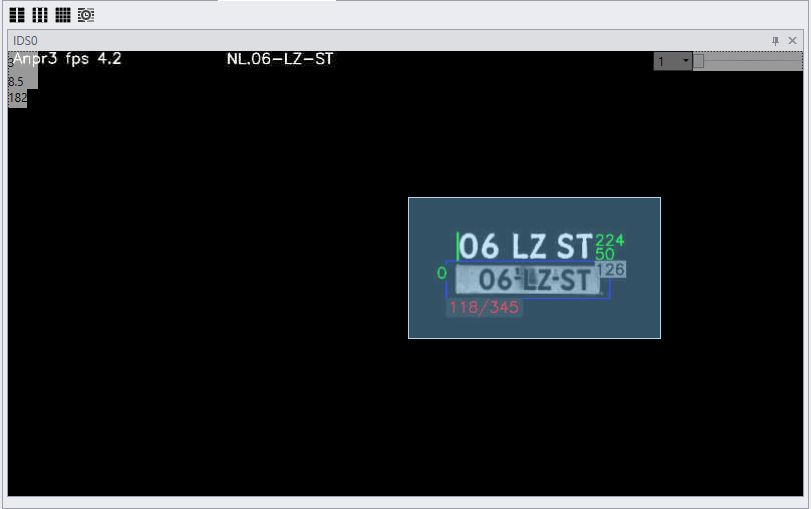
Step 2: Determine the proper zoom and focus levels: ANPR inspection tool |
|
|
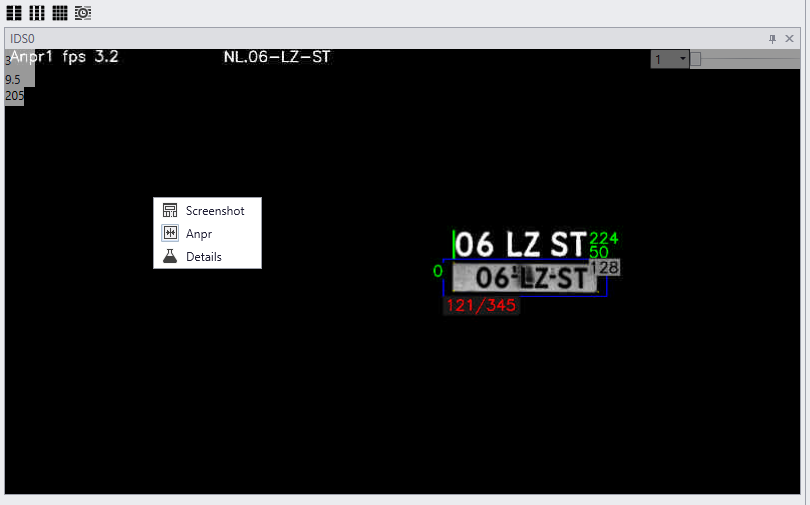
To visualize ANPR, right click on the image of the GatekeeperAxon viewpanel and choose 'Anpr'. The recognition overlay should now be visible. If the overlay is not visible the license plate will be either too big or too small and no license plate is recognized. Adjust zoom levels until the overlay is visible (see step 3).
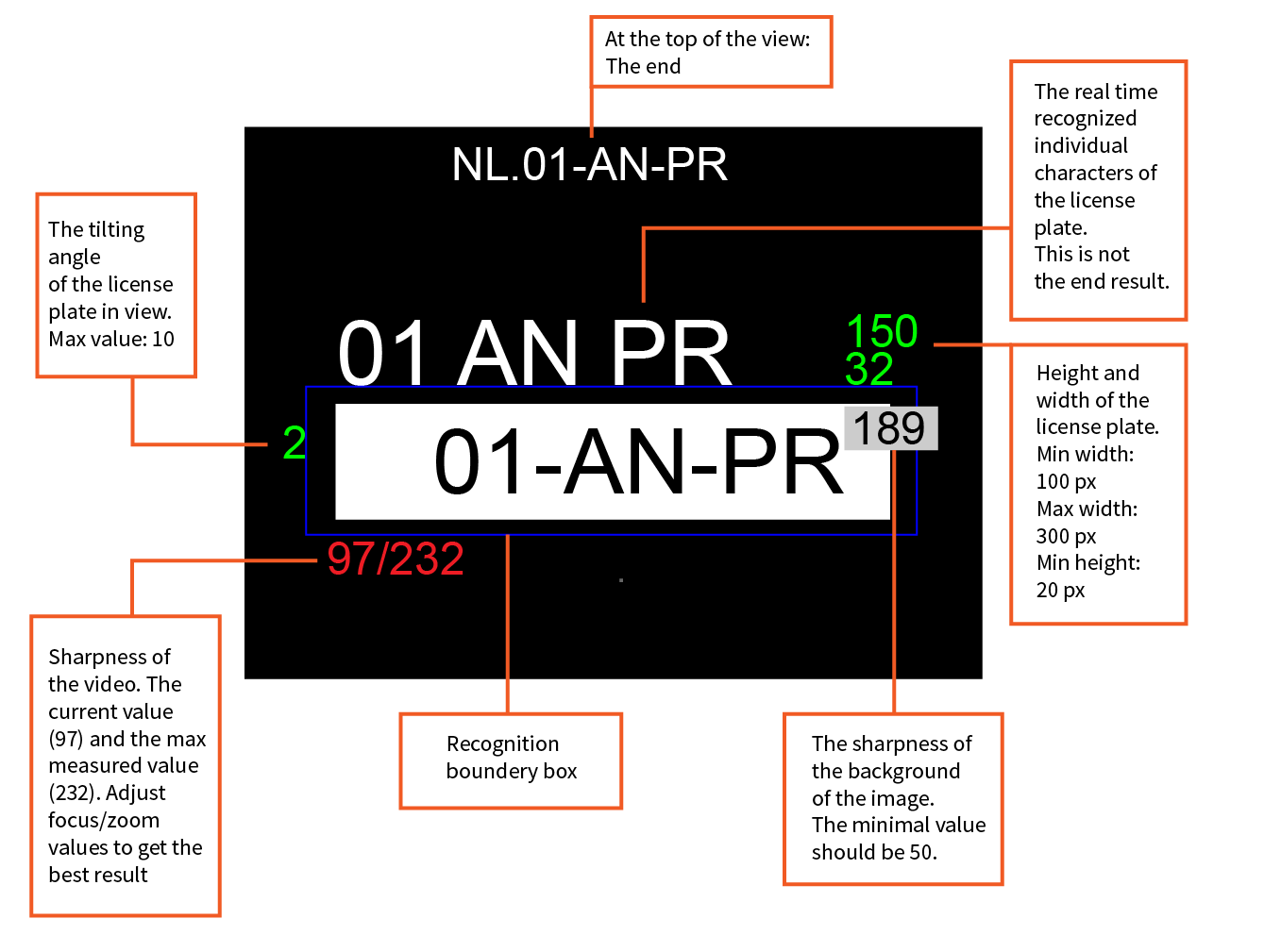
Explaining the numbers1.License plate size 2.The tilting angle of the license plate 3.Zoom/focus level 4.Recognized license plate |
The inspection tool schematic |
|
|
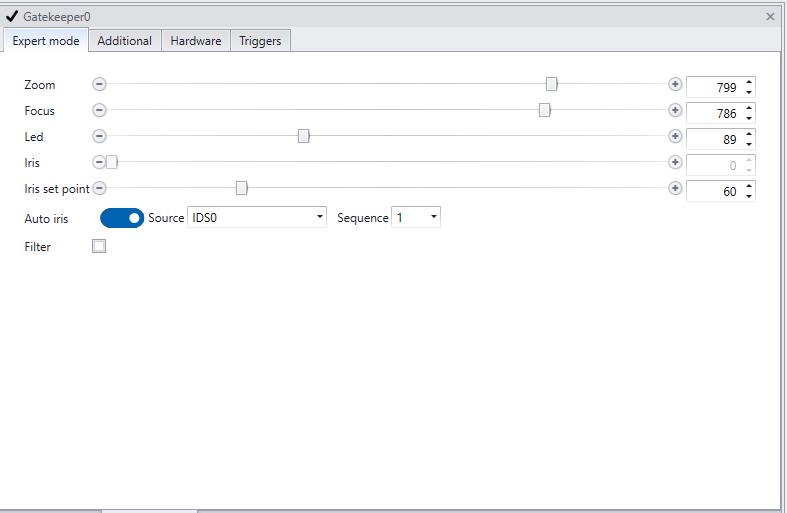
Step 3: The GatekeerAxon settingspanel (expert tab): to manually set zoom and focus |
|
Setting |
Min value |
Max value |
Description |
Zoom |
0 |
1000 |
To zoom in or out. When moving zoom focus will adjust automatically. |
Focus |
0 |
1000 |
To adjust the focus |
Led |
0 |
255 |
To adjust the strength of the led's |
Iris |
0 |
1000 |
To open or close the iris manually. |
Iris set point |
0 |
255 |
The iris set point is the value of the average brightness of the image. The iris will continually adapt to try to achieve this setting. If multiple sequences are active in the IDS settings, choose what sequence you are setting the iris for, in the ‘Sequence id’ setting. In general, you will set the iris for the darkest sequence, keeping the iris relatively closed. All subsequent sequences will be lighter. By default, the iris set point is set to 80, but in some cases, it may be necessary to adjust this value, for instance in extreme dark or light conditions. |
Auto iris |
Set iris to automatic adjustment to current lighting conditions. It will make the iris adjust to the iris set point. |
||
Source |
The source of the video stream. |
||
Sequence |
1 |
2 |
Set the sequence the auto iris uses to adjust to. See 'iris set point' (above) for more details. |
Filter |
off |
on |
To manually set the IR cut filter on or off. The filter stops infrared light reaching the sensor. The daylight filter only transmits infrared light.
|