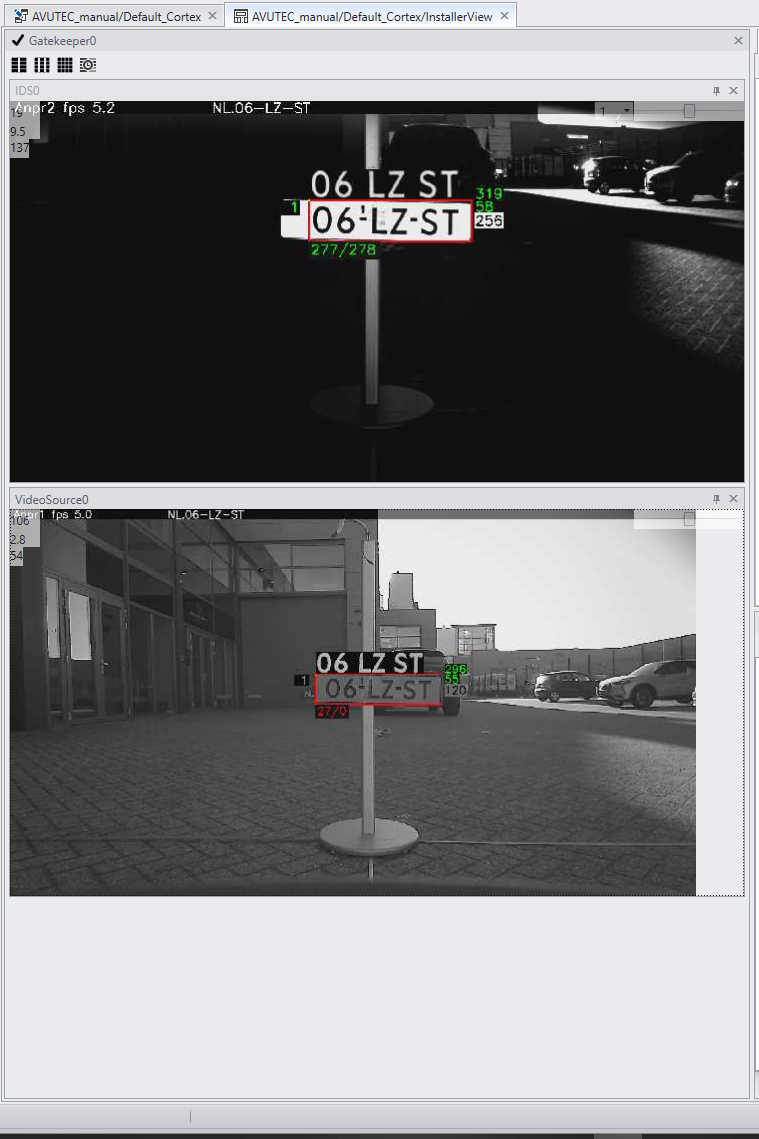
Since the GatekeeperAxon is at the end of the pipeline, it shows the images after recognition.
In the viewpanel both the images of the VideoSourceAxon and the IDSAxon can be displayed.
For both view the ANPR overlay can be enabled.
1. The viewpanel of the GatekeeperAxon in a ModuleX |
|
|
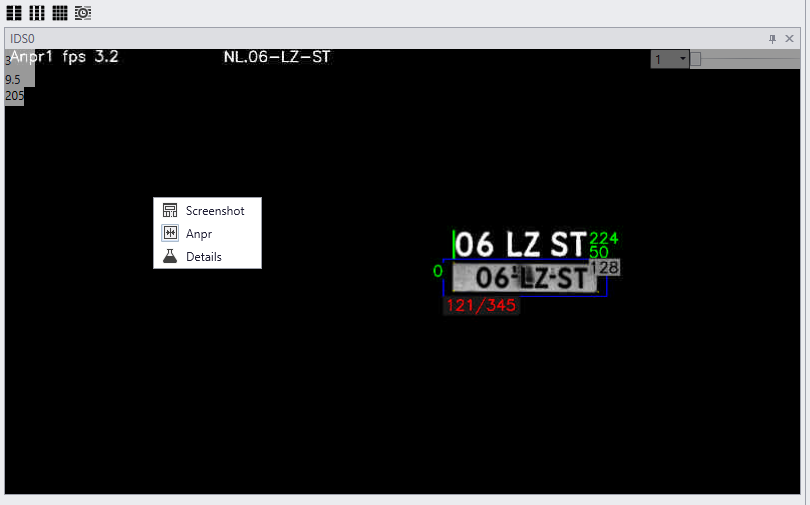
Enable the ANPR overlay by right clicking the image and choose 'anpr'. The overlay is used as an inspection tool for recognition.
Read the below paragraphs how to use the inspection tool. |
2. Overlay is not visible |
If the overlay is not displayed at this moment it means there is no ANPR result. Sometimes a blue square is drawn around the license plate. It means the ANPR engine has found a region of interest but was not able to read a license plate.
When a license plate is visible but not recognized zooming in or out and adjusting focus will do the trick most of the times. If the license plate is over lit adjust exposure and gain in the IDSAxon.
When the overlay displays many blue squares many regions of interests are found. Reducing background noise by cropping the image will speed up the processing speed of the Anpr Axons. Frame rate will increase. Make sure the license plate will be in scope for all the desired vehicle positions.
Don’t use the ImgCropAxon. This will be an extra operation costing processing power. Cropping in this stage must be done in the sensor itself by the configuring settings of IDSAxon. |
3. The inspection tool explained |
|
|
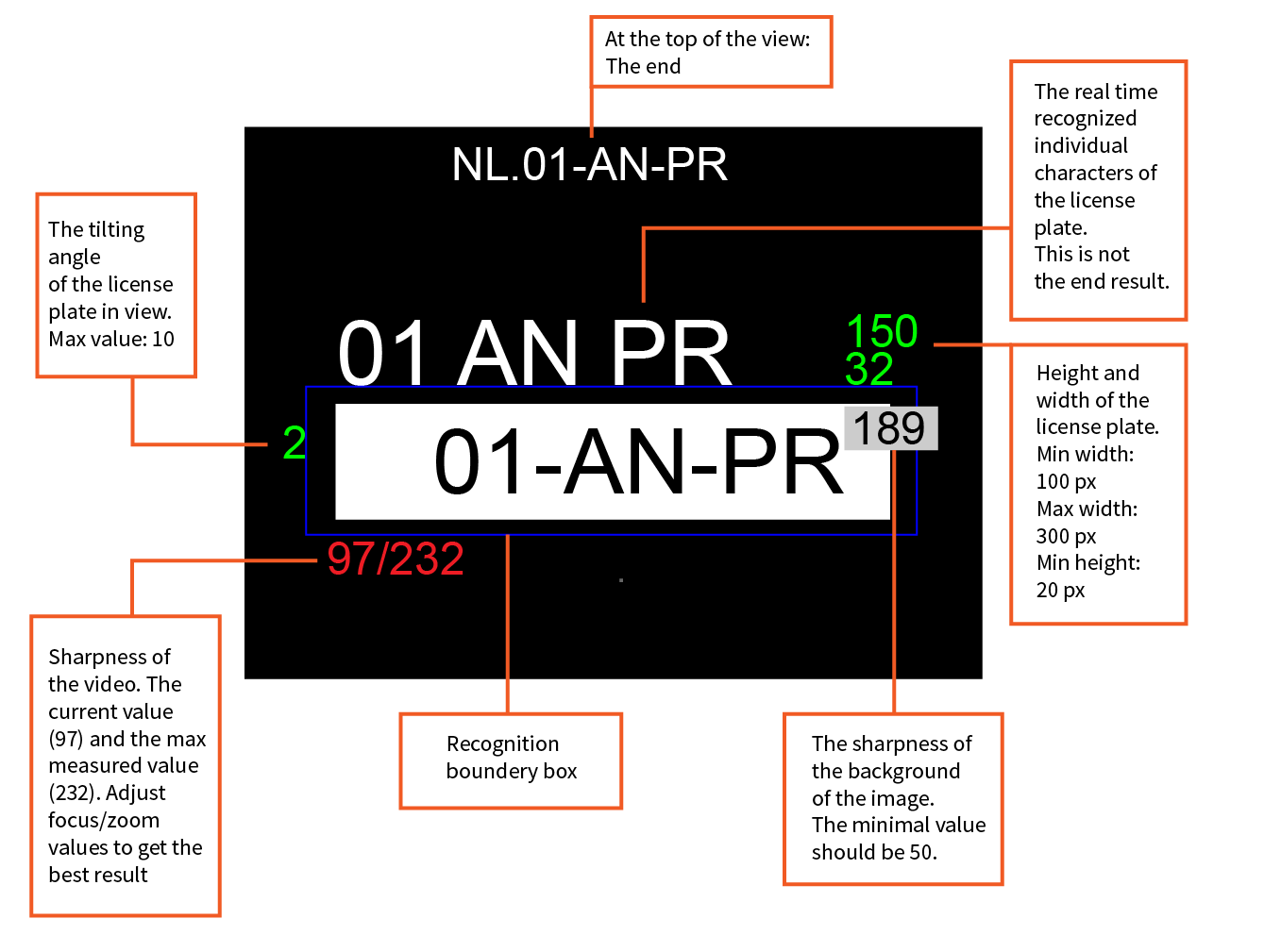
On the top of the screen "Anpr1 fps 3.2" is seen. ANPR0 is the name of the ANPRAxon the frame is processed by and it’s individual framerate. Next to the framerate the Anpr result is displayed that is found for this image.
White characters above the license plate (06 LZ ST)Around the license plate live information about recognition is displayed. The white letters above the license plate. represent the cut outs of the characters before interpretation. After interpretation the result of recognition is found at the top of the screen.
Green number at the right top (values 224 and 50)Next to the ANPR result highlighted in green two numbers are displayed. The top number is the width in pixels of the license plate. In order to recognize a license plate it’s width must be between 100 and 300 pixels. The second number shows the height in pixels. This number must be above 20. If the numbers are out of bounds they will turn red. Zoom and focus levels need to be adjusted.
The number within the white box (value 128)The number within the white box informs us about the average brightness of the background of the license plate. It illustrates the strength of the LED lights. When the value drops under 50 recognition will be more difficult. When the slider of the LEDs is moved the number will change.
The two numbers in red (values 121/345)The two numbers in red (show it) represent the sharpness of the image. The first number is the sharpness at the moment. The second number the higher sharpness measured so far in this image. When the first number is lower sharpness can be adjusted by rubber banding the license plate (dragging a square over the license plate with your mouse, show it). Sharpness will be recalculated. Remember that the number represents the highest value measured so far. Environmental circumstances can be changed in a way that for this moment the highest value can not be reached.
The green number on the left (value 0)Moving over to the green number on the left. This number represent the degree of tilting. This value needs to be beneath 10. |
4. Inspection tool schematic |
|